Explanation of 3D Transformation to 4x4 Matrix conversion for Houdini
Introduction
Like MtoA, Arnold does not provide a Geometry Gizmo when we create a Light Blocker Node inside Houdini. instead, it has a Geometry shape drop-down list of the Light Blocker and a 4x4 Transformation Matrix to Transform it in 3D space, but there is no visual representation of how the Geometry is being transformed in the Viewport. Here I'll be explaining all the information I found to make this conversion.
Things to know
The only thing required to understand this process is Matrix Multiplication. Though it's a 4x4 Matrix, our work area is the Top Left of the 3x3 Matrix.
There are Two Important things inside your DCC Application to know before starting off.
- Transformation order - SRT
- Rotation order - XYZ
Order of operation is very important while doing Matrix Multiplication. So, according to Houdini, it will be,
Scale XYZ -> Rotate X -> Rotate Y -> Rotate Z -> Translate XYZ
Please note all the Matrices shown below are according to Houdini SRT and Rotation XYZ order.
Translate and Scale Matrices

Translate and Scale Matrices are pretty straight forward. In Houdini, just copy the Translate and Scale parameter of the required object and paste relative reference in 4x4 Matrix as shown above, and your object is ready to Move and Scale in 3D space.
Rotate XYZ Matrices

Unlike Translate and Scale Matrices, Rotation has Matrix per Axis. To use Rotation combined, we will have to multiply them. As I said above, the order of operation matters, so first we have to multiply Rotate X and Rotate Y, then that will be multiplied with Rotate Z.

After multiplying all 3 matrices we get this single Matrix, this only includes Rotation metrics and not Translate and Scale.

Here is the final Matrix which includes all individual Translate, Rotate, and Scale Matrices. To achieve this first we multiply Scale Matrix with Rotate X, then with Rotate Y, and finally, with Rotate Z. Since Translate Matrix is not interfering with Scale and Rotate, it is directly placed at the end.
If you have a different DCC
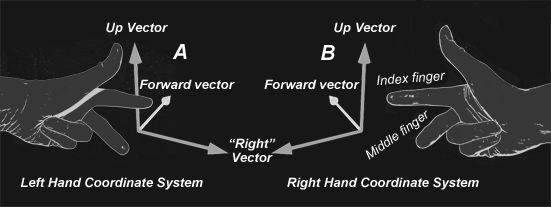
Your axis direction depends on the coordinate system of the DCC. The Matrices which I have shared may give you inverse rotation if you apply them in other DCC which have a different coordinate system. There are two formulas to remember while inverting the axis.

So, if we implement this formula in the Rotation Matrix, this is how it will look like.

If you see above, after inverting we only see the difference in sinX, the rest is as-is. You can use this method to correct your axis rotation in DCC other than Houdini. After correcting the Axis multiply Matrices in the right order and you should get the correct result.
With the help of the above Matrix Formula, I have prepared a Light Blocker for HtoA.